Showing posts with label customize. Show all posts

Saturday, 9 July 2011

Linux Performance Monitoring and Tuning


Linux system administrators should be proficient in Linux performance monitoring and tuning. This article gives a high level overview on how we should approach performance monitoring and tuning in Linux, and the various subsystems (and performance metrics) that needs to be monitored.
To identify system bottlenecks and come up with solutions to fix it, you should understand how various components of Linux works. For example, how the kernel gives preference to one Linux process over others using nice values, how I/O interrupts are handled, how the memory management works, how the Linux file system works, how the network layer is implemented in Linux, etc.,
Please note that understanding how various components (or subsystems) works is not the same as knowing what command to execute to get certain output. For example, you might know that “uptime” or “top” command gives the “load average”. But, if you don’t know what it means, and how the CPU (or process) subsystem works, you might not be able to understand it properly. Understanding the subsystems is an on-going task, which you’ll be constantly learning all the time.
On a very high level, following are the four subsystems that needs to be monitored.
  • CPU
  • Memory
  • I/O
  • Network

1. CPU

You should understand the four critical performance metrics for CPU — context switch, run queue, cpu utilization, and load average.

Context Switch

  • When CPU switches from one process (or thread) to another, it is called as context switch.
  • When a process switch happens, kernel stores the current state of the CPU (of a process or thread) in the memory.
  • Kernel also retrieves the previously stored state (of a process or thread) from the memory and puts it in the CPU.
  • Context switching is very essential for multitasking of the CPU.
  • However, a higher level of context switching can cause performance issues.

Run Queue

  • Run queue indicates the total number of active processes in the current queue for CPU.
  • When CPU is ready to execute a process, it picks it up from the run queue based on the priority of the process.

20 Linux System Monitoring Tools

20 Linux  System Monitoring Tools Every SysAdmin Should Know


Need to monitor Linux server performance? Try these built-in command and a few add-on tools. Most Linux distributions are equipped with tons of monitoring. These tools provide metrics which can be used to get information about system activities. You can use these tools to find the possible causes of a performance problem. The commands discussed below are some of the most basic commands when it comes to system analysis and debugging server issues such as:
  1. Finding out bottlenecks.
  2. Disk (storage) bottlenecks.
  3. CPU and memory bottlenecks.
  4. Network bottlenecks.

#1: top - Process Activity Command

Fig.01: Linux top commandThe top program provides a dynamic real-time view of a running system i.e. actual process activity. By default, it displays the most CPU-intensive tasks running on the server and updates the list every five seconds.

Commonly Used Hot Keys

The top command provides several useful hot keys:


Hot KeyUsage
tDisplays summary information off and on.
mDisplays memory information off and on.
ASorts the display by top consumers of various system resources. Useful for quick identification of performance-hungry tasks on a system.
fEnters an interactive configuration screen for top. Helpful for setting up top for a specific task.
oEnables you to interactively select the ordering within top.
rIssues renice command.
kIssues kill command.
zTurn on or off color/mono


#2: vmstat - System Activity, Hardware and System Information

The command vmstat reports information about processes, memory, paging, block IO, traps, and cpu activity.


# vmstat 3
Sample Outputs:

Tuesday, 5 July 2011

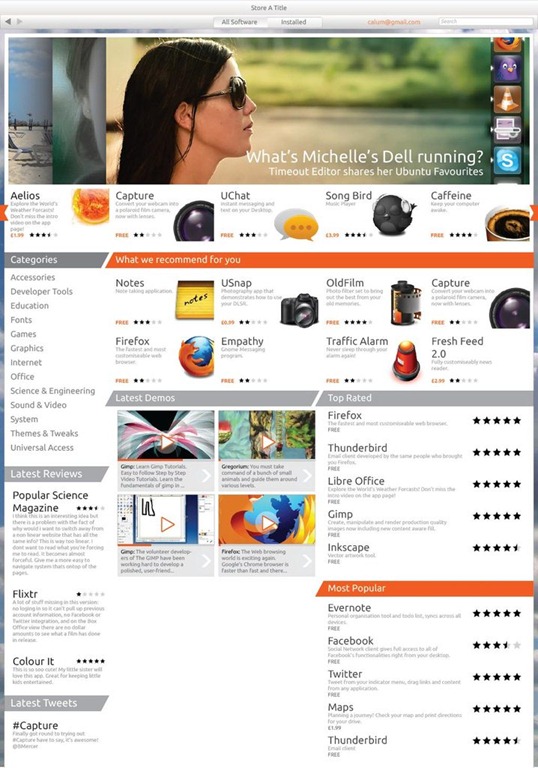
Ubuntu Software Centre 5.0 Designs Hint At Great Things to Come…


The Canonical design team are currently hard at work designing, testing, evaluating new layouts for the Ubuntu Software Centre version 5.0.
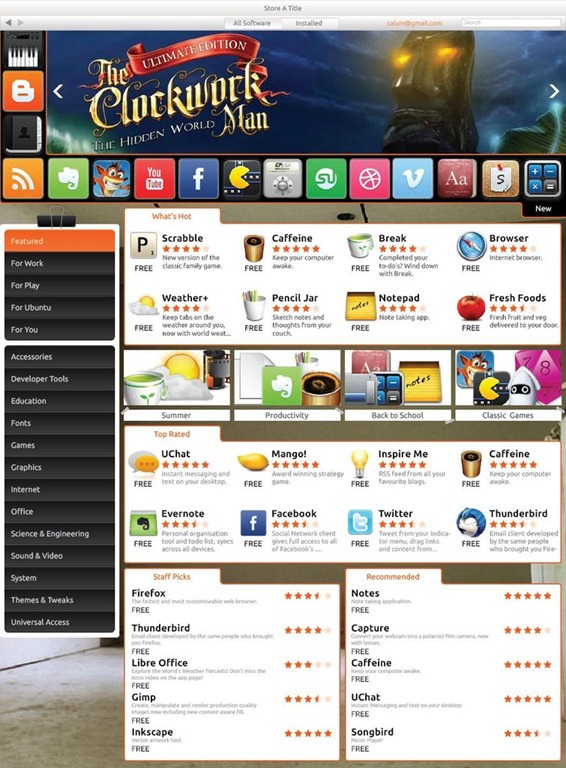
Their work so far has resulted in three highly impressive mock-ups of Ubuntu Software Store interfaces heavily featuring an aggregated set of features that are par-the-course for Application Stores across various platforms.
Ubuntu Software Centre 5.0 - design 1

Revamp begins

Canonical’s Matthew Paul Thomas writing on the 2nd of June said: -
“…my design colleague Calum Pringle and I have been working on revising the design of Ubuntu Software Center. The objective is to make USC more interesting and attractive, both to Ubuntu users and to application developers.
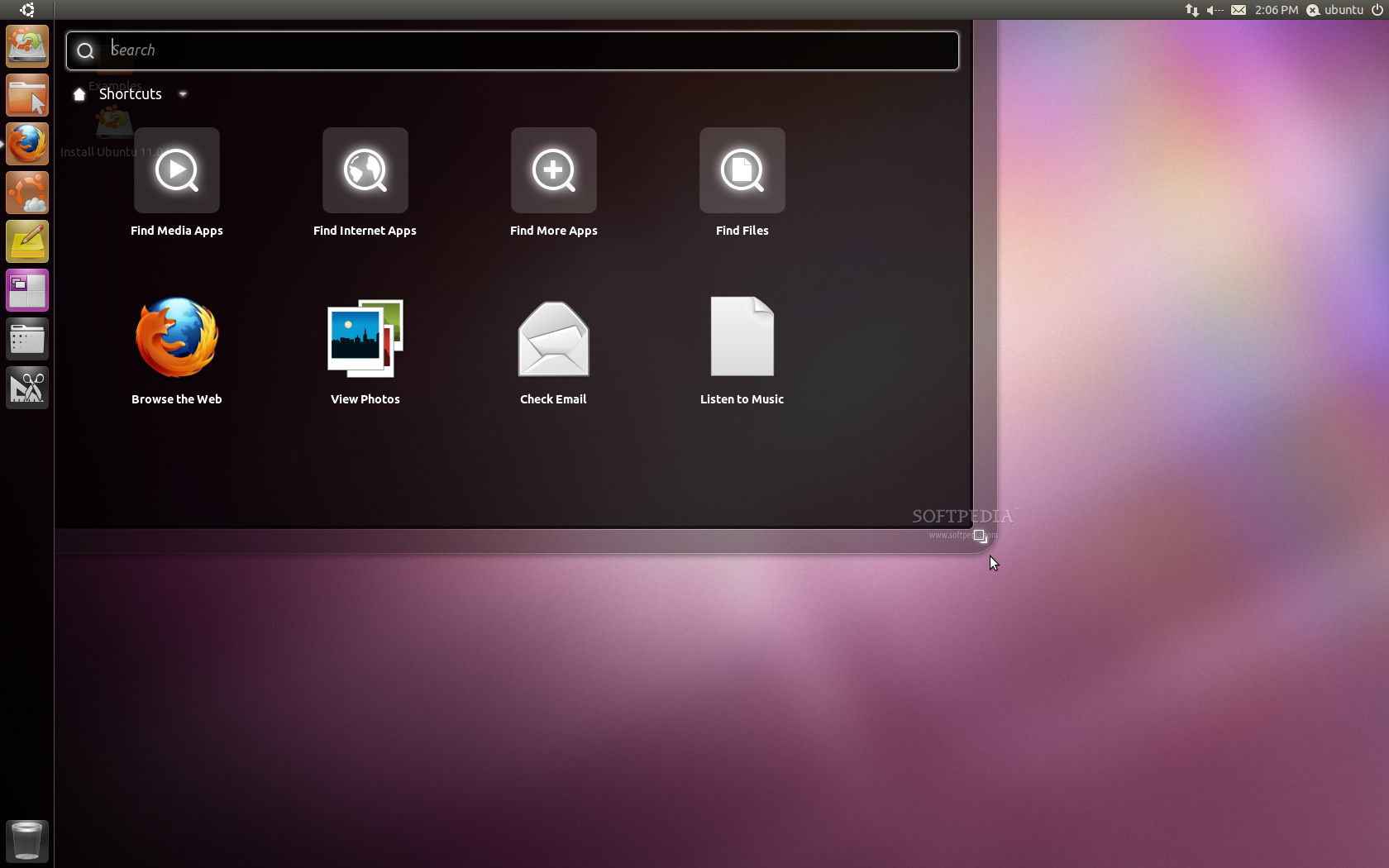
Ubuntu Software Centre 4 in Ubuntu 11.04
For the competitor analysis, we looked at the Android Market, Mac and iPad App Stores, Blackberry App World, Bodega, and Chrome Web Store.
There are a few common elements we have noticed that we don’t have currently. Regardless of the final layout, it would be helpful to start thinking about how we might implement each of these.”
Some of these ideas include: -
  • Top rated applications
  • Context-specific recommendations
  • Top Rated
  • Most Popular
  • Preview videos
  • Multiple screenshots
  • Custom artwork for application screens
Ubuntu Software Centre 5.0 - design 2
He continues: “For layout ideas, we’ve considered metaphors like a convenience store, supermarket, department store, vending machine, museum, art gallery, and even a sushi bar. “
These latter analogies play heavily in this current spate of designs. current mock-up designs, particularly in this ‘notice board’ one: -
Ubuntu Software Centre 5.0 - design 3
Before you get too excited by the shiny shiny bling bling the mock-ups above are still subject to change, refinement, evaluation, user feedback and not all features shown will appear in Ubuntu 11.10.
But what you can get excited about is that the Ubuntu Software Centre – arguably one of Ubuntu’s strongest assets – is finally getting the level of design attention is so desperately needed.

Do you Know what Android is ?


Android is a software stack for mobile devices that includes an operating system, middleware and key applications. The Android SDK provides the tools and APIs necessary to begin developing applications on the Android platform using the Java programming language.

Features

  • Application framework enabling reuse and replacement of components
  • Dalvik virtual machine optimized for mobile devices
  • Integrated browser based on the open source WebKit engine
  • Optimized graphics powered by a custom 2D graphics library; 3D graphics based on the OpenGL ES 1.0 specification (hardware acceleration optional)
  • SQLite for structured data storage
  • Media support for common audio, video, and still image formats (MPEG4, H.264, MP3, AAC, AMR, JPG, PNG, GIF)
  • GSM Telephony (hardware dependent)
  • Bluetooth, EDGE, 3G, and WiFi (hardware dependent)
  • Camera, GPS, compass, and accelerometer (hardware dependent)
  • Rich development environment including a device emulator, tools for debugging, memory and performance profiling, and a plugin for the Eclipse IDE

Android Architecture

The following diagram shows the major components of the Android operating system. Each section is described in more detail below.
Android System Architecture

Applications

Android will ship with a set of core applications including an email client, SMS program, calendar, maps, browser, contacts, and others. All applications are written using the Java programming language.

Application Framework

By providing an open development platform, Android offers developers the ability to build extremely rich and innovative applications. Developers are free to take advantage of the device hardware, access location information, run background services, set alarms, add notifications to the status bar, and much, much more.
Developers have full access to the same framework APIs used by the core applications. The application architecture is designed to simplify the reuse of components; any application can publish its capabilities and any other application may then make use of those capabilities (subject to security constraints enforced by the framework). This same mechanism allows components to be replaced by the user.
Underlying all applications is a set of services and systems, including:
  • A rich and extensible set of Views that can be used to build an application, including lists, grids, text boxes, buttons, and even an embeddable web browser
  • Content Providers that enable applications to access data from other applications (such as Contacts), or to share their own data
  • A Resource Manager, providing access to non-code resources such as localized strings, graphics, and layout files
  • A Notification Manager that enables all applications to display custom alerts in the status bar
  • An Activity Manager that manages the lifecycle of applications and provides a common navigation backstack
For more details and a walkthrough of an application, see the Notepad Tutorial.

Libraries

Android includes a set of C/C++ libraries used by various components of the Android system. These capabilities are exposed to developers through the Android application framework. Some of the core libraries are listed below:
  • System C library - a BSD-derived implementation of the standard C system library (libc), tuned for embedded Linux-based devices
  • Media Libraries - based on PacketVideo's OpenCORE; the libraries support playback and recording of many popular audio and video formats, as well as static image files, including MPEG4, H.264, MP3, AAC, AMR, JPG, and PNG
  • Surface Manager - manages access to the display subsystem and seamlessly composites 2D and 3D graphic layers from multiple applications
  • LibWebCore - a modern web browser engine which powers both the Android browser and an embeddable web view
  • SGL - the underlying 2D graphics engine
  • 3D libraries - an implementation based on OpenGL ES 1.0 APIs; the libraries use either hardware 3D acceleration (where available) or the included, highly optimized 3D software rasterizer
  • FreeType - bitmap and vector font rendering
  • SQLite - a powerful and lightweight relational database engine available to all applications

Android Runtime

Android includes a set of core libraries that provides most of the functionality available in the core libraries of the Java programming language.
Every Android application runs in its own process, with its own instance of the Dalvik virtual machine. Dalvik has been written so that a device can run multiple VMs efficiently. The Dalvik VM executes files in the Dalvik Executable (.dex) format which is optimized for minimal memory footprint. The VM is register-based, and runs classes compiled by a Java language compiler that have been transformed into the .dex format by the included "dx" tool.
The Dalvik VM relies on the Linux kernel for underlying functionality such as threading and low-level memory management.

Linux Kernel

Android relies on Linux version 2.6 for core system services such as security, memory management, process management, network stack, and driver model. The kernel also acts as an abstraction layer between the hardware and the rest of the software stack.

Ubuntu 11.04 Desktop Customization Guide

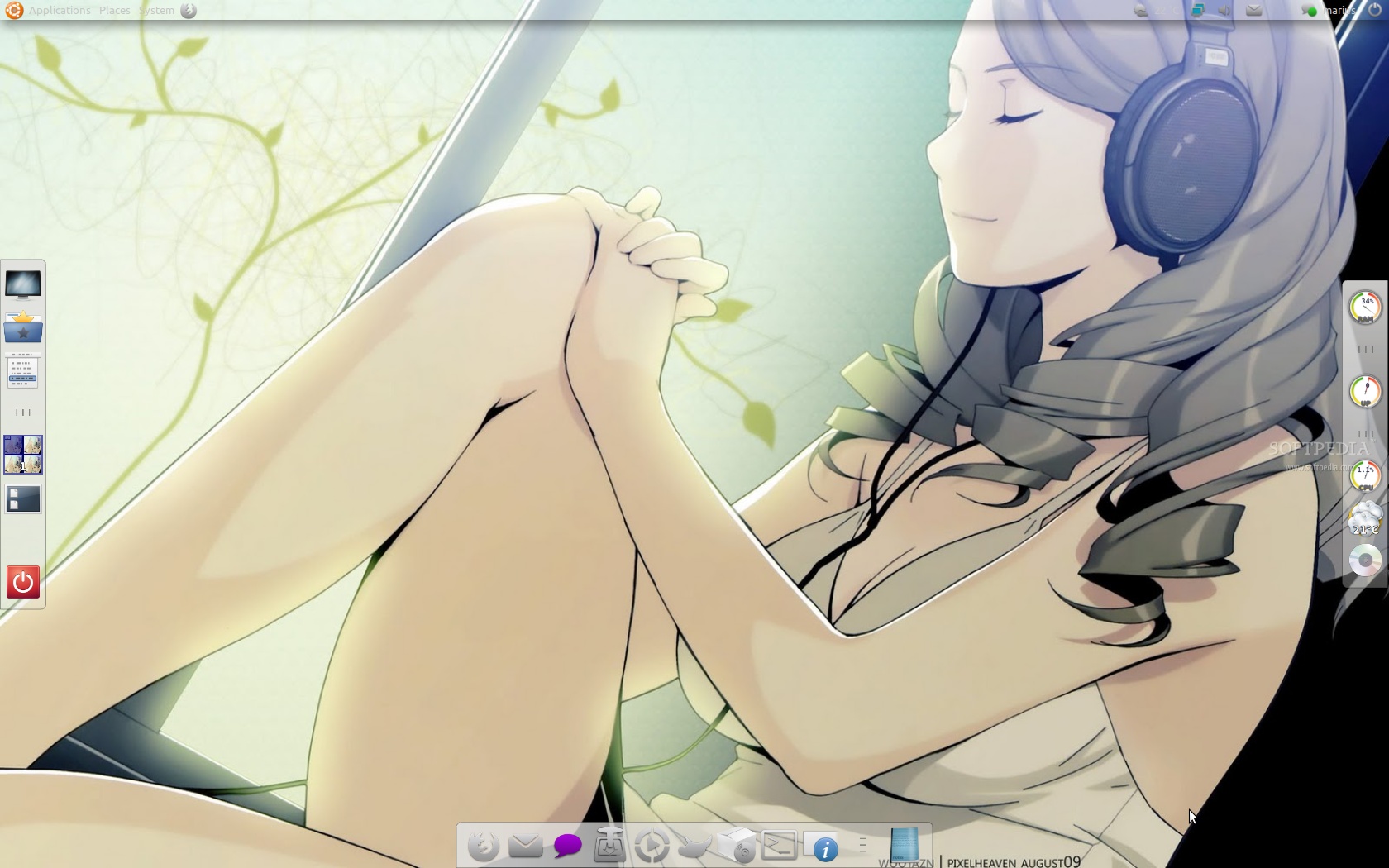
At the request of our readers we have decided to revive our usual desktop customization tutorial for the Ubuntu 11.04 (Natty Narwhal) operating system, because of Unity!

Many of you hate Unity, therefore this step-by-step tutorial was created for the Ubuntu 11.04 (Natty Narwhal) operating system and it will teach you how to change the looks of your Linux desktop into an eye-candy, practical, simple and modern workstation. 

In other words, to pimp your Ubuntu 11.04 desktop and change its looks:


Review imageReview image
from thisto this


Things you need to get started:

1. 
Ubuntu 11.04 (Natty Narwhal) operating system (Desktop Edition);
2. 
Cairo-Dock;
3. 
Divergence IV - "A New Hope" GTK2 Theme;
4. 
AwOken Icon Theme;
5. An amazing wallpaper!

Step 1 - Removing Unity

You will have to log out of your current Unity session by using the shutdown button at the right, choosing the "Log Out" option.

Review image

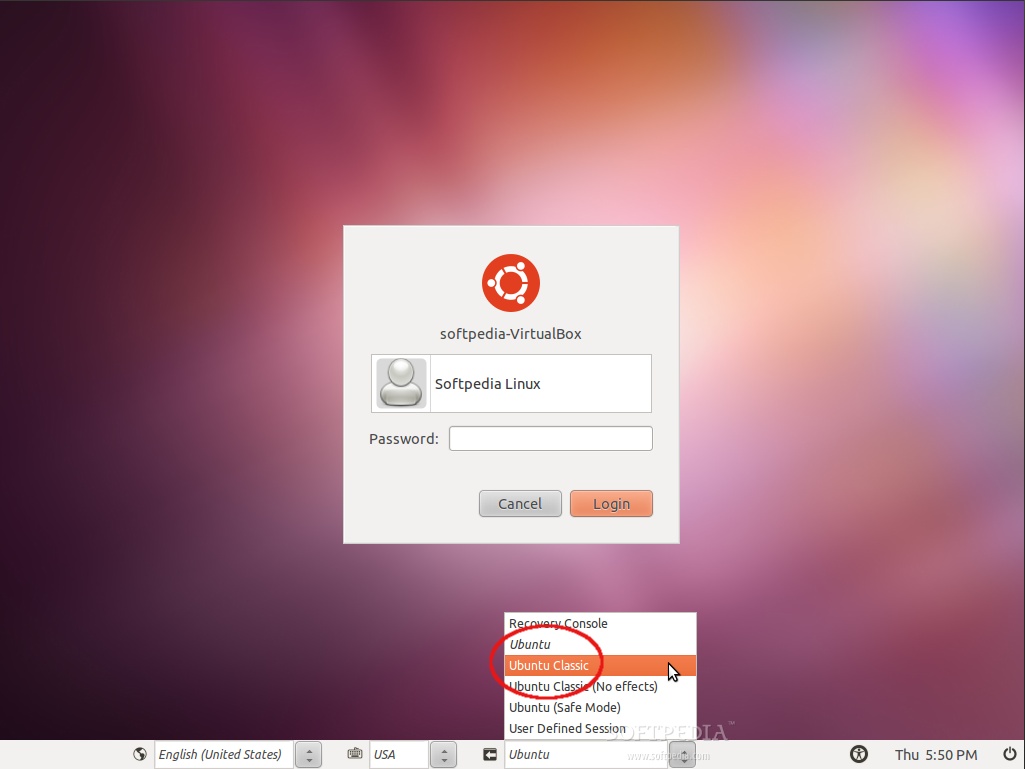
After that, at the login screen, all you have to do is to click on your user name and choose the "Ubuntu Classic" option from the Sessions drop down box...
Review image

Make sure the "Ubuntu classic" entry is selected correctly and type in your password to log back in. Voila, Unity is gone!

Step 2 - Cleaning the desktop

Right click on the bottom panel and select the "Delete This Panel" option...

Review image

In order to make the upper panel transparent, right click on it and select "Properties"...
Review image

On the "Background" tab select the "Solid color" option and drag the Style slide to "Transparent"...
Review image

Click the "Close" button and the panel will be transparent!

Step 3 - Installing Cairo-Dock

Install Cairo-Dock by using Ubuntu Software Center (Applications -> Ubuntu Software Center)...

Review image

...search and install Cairo-Dock...
Review image

Enter your password when asked...
Review image

Wait for the installation process to finish...
Review image

That's it! Cairo-Dock is now installed. Close Ubuntu Software Center and proceed to the next step to configure Cairo-Dock.

Step 4 - Configuring Cairo-Dock

Configuring Cairo-Dock is a matter of choice and taste. You can right click on an empty space on the dock and choose "Cairo-Dock -> Configure"...

Review image

From here you can add new themes, new plugins, change the effects and how the dock looks.
Review image

Step 5 - Install the Divergence IV - "A New Hope" GTK2 theme

We've selected the second best GTK2 theme for this tutorial. Download it from the link at the beginning of the tutorial and follow the instructions below to install it:

- Extract the .zip file to a folder
- Double click "install.sh" and select "Run"
- Follow the prompts to configure it.

Your desktop should look like this...


Editor's note: To open the customization tool go to System -> Preferences -> A New Hope Config.

Step 6 - Install the AwOken icon theme


We've also selected the second best icons theme for this tutorial. Hit the ALT+F2 key combination and paste the following commands, one by one:

sudo add-apt-repository ppa:alecive/antigone

sudo apt-get update

sudo apt-get install awoken-icon-theme

Editor's note: A terminal window will be opened for each command. It will close automatically at the end of each command.

To configure the AwOken icon theme, hit ALT+F2, paste and run the following command...

awoken-icon-theme-customization

...and follow the instructions provided!

Step 7 - Final touches

Add that nice wallpaper you've dreamed about (right click on your desktop -> Change Desktop Background)... and voila, your Ubuntu desktop has been pimped